
When a computer needs to do a DNS lookup, the first place it looks is its internal cache, since it is the fastest place to get the DNS information. If the computer is not refreshing its DNS cache in a timely manner, it may become necessary to flush the cache manually.
Flushing the DNS Cache in Windows 10/11
Windows 10 and 11 users can Right Click on the Start menu icon. Windows 10 users will see "Windows PowerShell (Admin)", while Windows 11 users will see "Windows Terminal (Admin)". Click on either of these. Windows 10 is shown below:
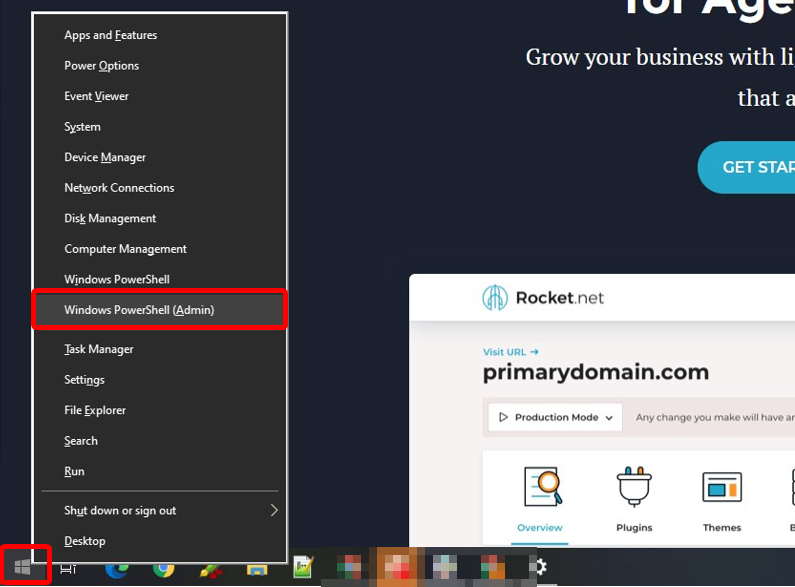
Click on either "Windows PowerShell(Admin)" or "Windows Terminal (Admin)". Both will give you a command prompt that will look similar to the following screen shot:
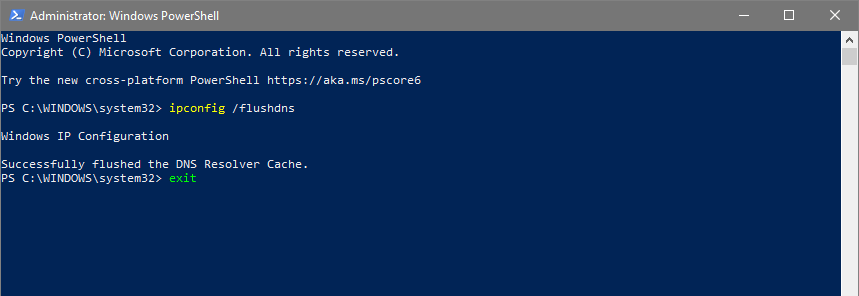
As shown in the screen shot, run the following command:
ipconfig /flushdns
This will flush the DNS cache, and you'll see the message "Successfully flushed the DNS Resolver Cache." At the point you can type "exit" and press Enter, or just click the X in the top right corner.
Flushing DNS Cache on MacOS
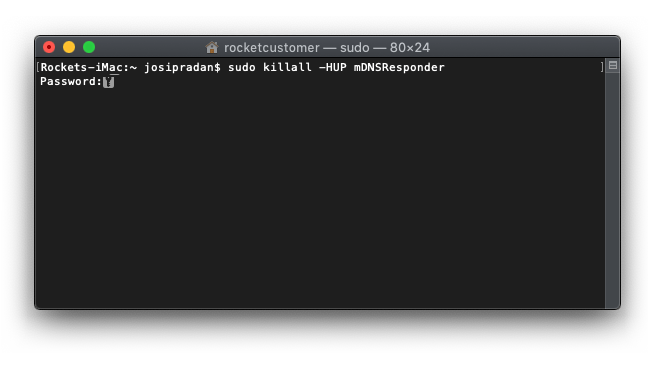
Flushing the DNS Cache in MacOS must be done at the terminal. First open Terminal and then enter the command from the chart below. You'll be prompted for a password, and this is the same password that you use to log into your computer at start up. When it is done, it'll return you to a command prompt, at which time you can simply type "exit" and press Enter.
| MacOS Version* | DNS Flush Command |
|---|---|
|
10.7 (Lion) |
sudo killall -HUP mDNSResponder |
| 10.10 (Yosemite) |
sudo discoveryutil mdnsflushcache |
|
10.9 (Mavericks) |
sudo dscacheutil -flushcache sudo killall -HUP mDNSResponder |
*To find your MacOS version, click the Apple in the top left corner and then click "About This Mac"
Flushing DNS Cache on Linux
Regardless of the version of Linux you have on your desktop computer, you must first open a Terminal.
If you have a supported version of Ubuntu or one of its many derivatives, then the following command should be all you need:
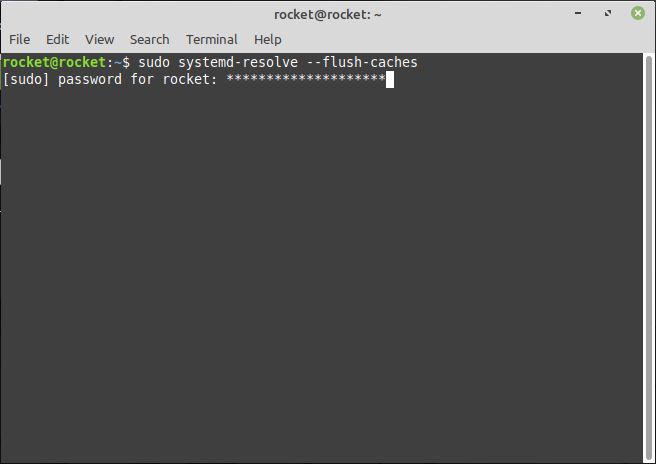
sudo systemd-resolve --flush-caches
Like a Mac, you'll be prompted for your administrative password as shown in this screen shot from Mint Linux:
If this command does not work, then a quick Google search for "Your distro name flush dns" such as "Gentoo Linux flush dns" should help you find an answer from the community.
Of course, if you have any issues or require assistance, please do not hesitate to Submit a Ticket to our Support Team. We'll be glad to help you!
Comments
0 comments
Article is closed for comments.